Plan the room.
Run the room.
Mat Plan is a wrestling practice planner made by a high school head coach. Build practices in minutes, put them on the wrestling-room TV, and run them block by block.
Get startedEmail the coach
Build practices fast
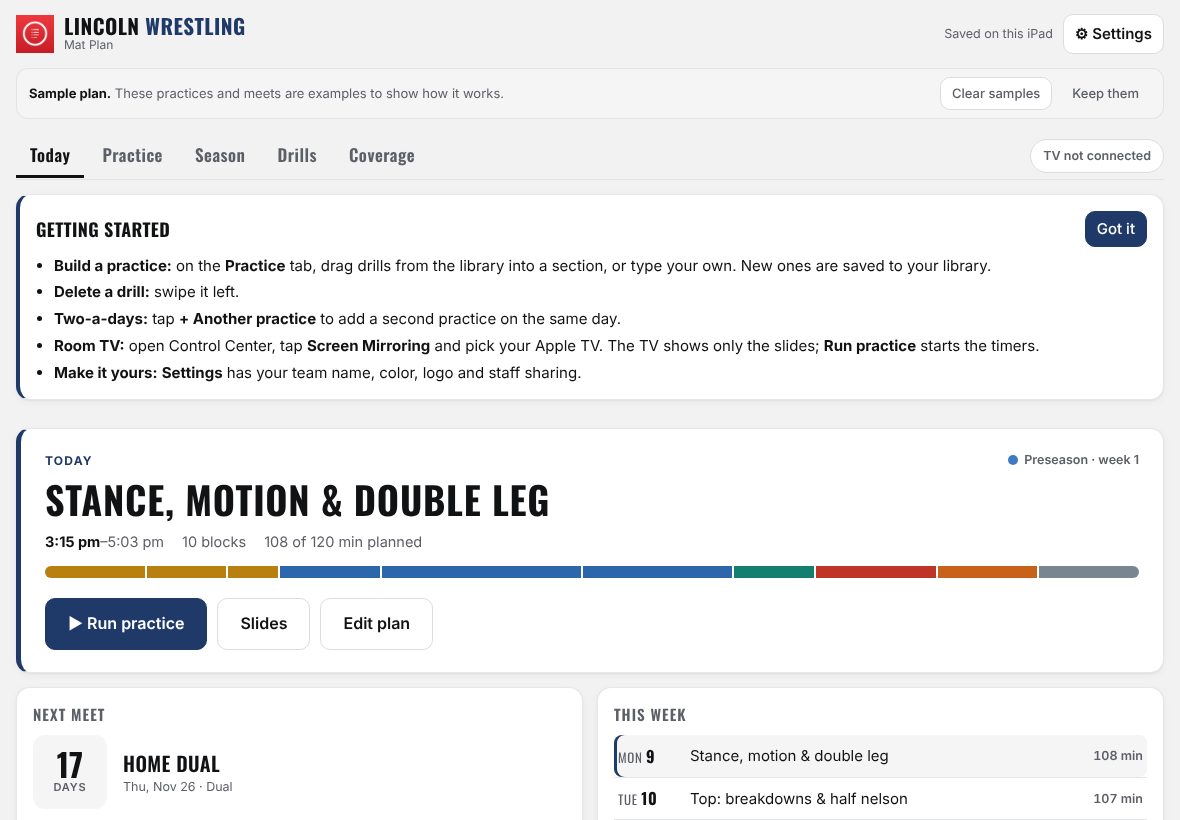
Sections in a wrestling order: Business, Warm-up, Drilling, Technique, Live, Conditioning, Cool-down. Drag drills in from a 60-drill starter library or add your own.
Put it on the TV
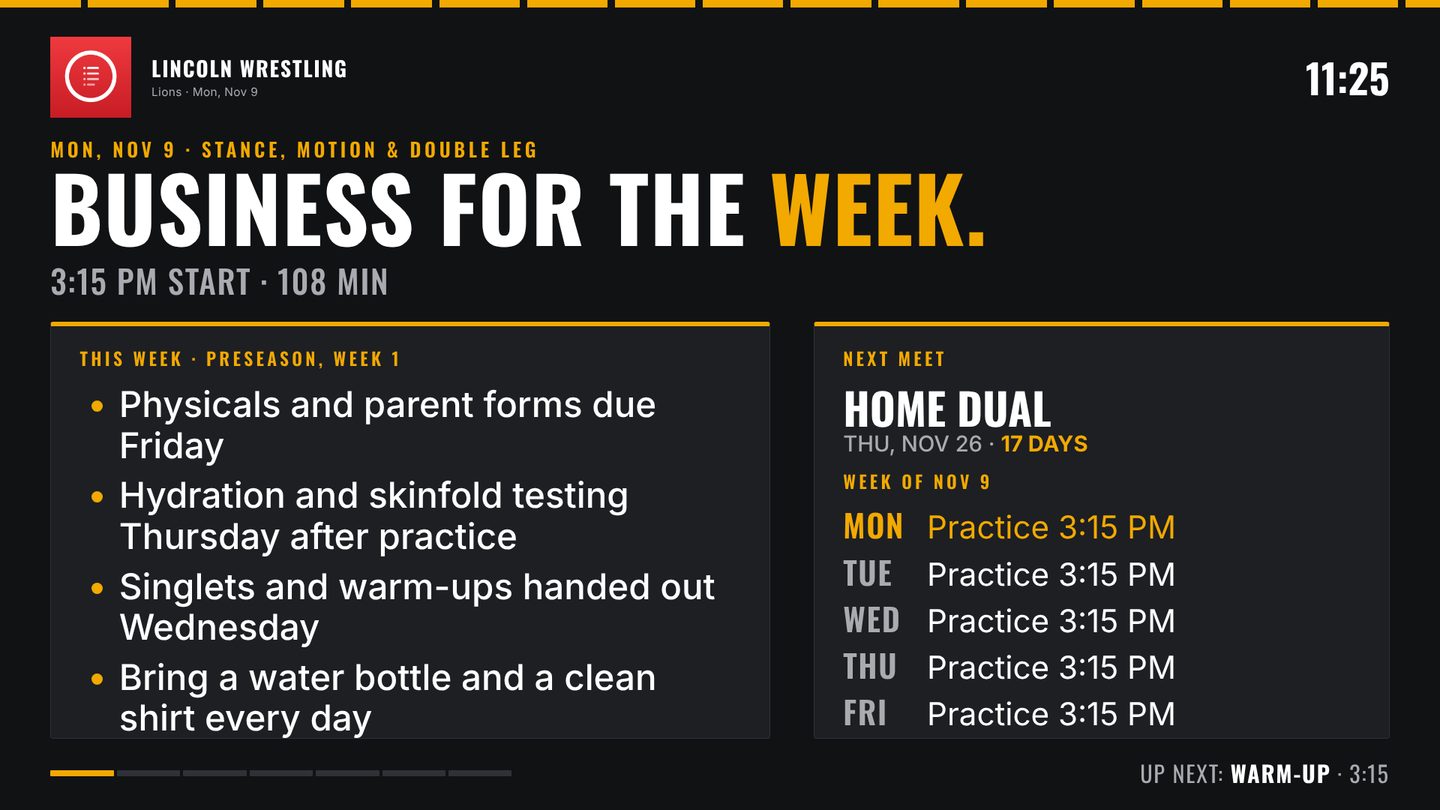
Mirror to an Apple TV and the room screen shows clean, big slides in your team colors while the iPad keeps the planner.
Run practice
A block-by-block screen with optional timers and beeps. Already have a wall timer? Turn countdowns off.
Your team, your look
Add your school name, mascot, team color and logo. They show up in the app and on every slide.
Season & calendar
Plan by phase, track meets and bus times, and sync with the calendar on your iPad or Mac.
Plan with your staff
Invite assistant coaches through iCloud. Everyone edits the same practices. Print any plan or save it as a PDF.
Support
Questions, a bug, or an idea for a feature? Email stranny00@gmail.com. I coach too, so I usually answer within a day or two.
Getting started
- Open Mat Plan. The welcome setup asks for your school or club name, mascot, team color, logo and usual practice time. You can skip any of it and change it later in Settings › Your team.
- Choose Explore an example week to look around with sample practices, or Start with a blank season. Sample practices can be removed anytime with Clear samples.
- On the Practice tab, pick a day. Drag drills from the library into a section, or tap + Add in a section and type your own. New drills are saved to your library.
- Type the week’s announcements in Business. They show on the first TV slide all week.
- Swipe a drill left to delete it. Tap + Another practice for a second practice on the same day.
Showing slides on the TV
- Open Mat Plan first.
- Open Control Center, tap Screen Mirroring and pick your Apple TV (or AirPlay-compatible TV).
- The TV shows the slides; the iPad stays on the planner. Use Slides or Run practice to move through them.
If the edges of the picture are cut off, set the TV’s picture size to “Just Scan” or “Fit to Screen.” For music through a Bluetooth speaker while mirroring, pair the speaker with the Apple TV (Settings › Remotes and Devices › Bluetooth).
Calendar sync
- In Season › Calendar sync, choose the calendar that holds your schedule.
- Events with the word Practice become practice days at that start time. “No Practice” or “Practice Canceled” marks a day off.
- Other events become meets. Put the bus time in the event notes, like Bus leaves 2:45.
Sharing with your staff
In Settings › Share with staff, invite a coach by text or email. They install Mat Plan, tap your invite, and you both edit the same plans. Changes show up on each device within about 30 seconds. Sharing uses each coach’s own iCloud account.
Common questions
Does it need the internet?
No. Mat Plan works offline. iCloud sync and staff sharing catch up when you’re back online.
How do I move my plans to a new iPad?
If you’re signed in to the same iCloud account, they sync on their own. You can also use Settings › Backup & restore to save a backup file and restore it on the other device.
How do I print a practice?
On the Practice tab, tap Print. From the print screen you can print or save the plan as a PDF.
Can I change my team colors or logo later?
Yes, anytime in Settings › Your team. A square PNG logo with a clear background looks best.
Does the iPad need to stay plugged in?
No, but screen mirroring uses more battery. For a full two-hour practice, plugging in is a good idea.
Requirements
- iPad with iPadOS 17 or later, or a Mac with macOS 14 Sonoma or later
- iCloud (optional) to sync your devices and share with staff
- Apple TV or AirPlay-compatible TV (optional) for the wrestling-room screen